You are here: 1. FPGA > 1.3 Programming the FPGA
1.3 Programming the FPGA
- On your computer, double-click the flashpro.exe application. The FlashPro window opens.
- Select the Open Project button on the FlashPro window. The Open Project window opens (Figure 1).
Figure 1 Open Project Window
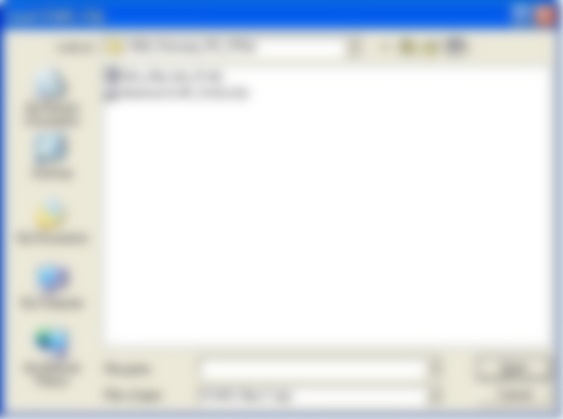
- In the Open Project window, navigate to the folder where the project is saved and select the project file.
- Click the Open button. The project opens in the FlashPro window.
- Click the Refresh/Rescan for Programmers button. The FlashPro JTAG programmer panel opens in the FlashPro window.
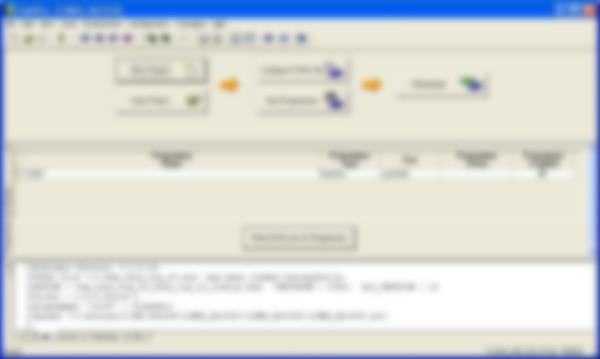
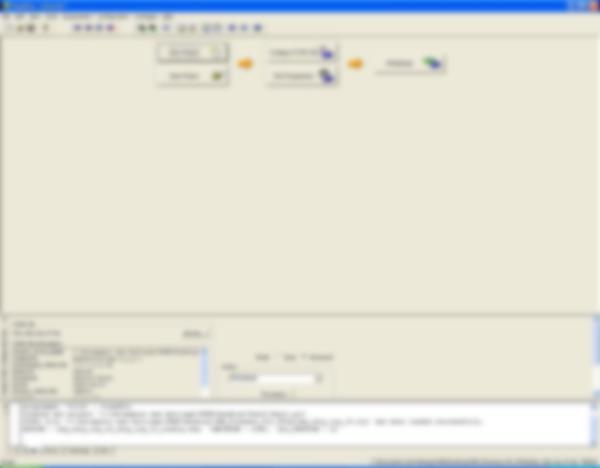
- In the FlashPro JTAG programmer panel, confirm that the Programmer Name field lists the correct programmer ID number (Figure 2).
Figure 2 FlashPro - [ProjectName] Window
- In the main menu, select Programmers > Scan Chain. The Select programmer(s) dialog window opens (Figure 3).
Figure 3 Select programmer(s) Dialog Window
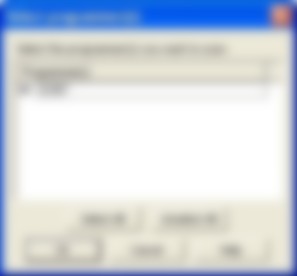
- Check the box next to the programmer ID number.
- Click the OK button.
- Confirm that the message Scan Chain PASSED appears in the Programmer Status field of the FlashPro window.
- Confirm that this message appears in the Output Message panel on the FlashPro window:
programmer '[ID number]' : Device 1: 1MCS160 Mfr: Microsemi Part: MCS150
- Click the Configure STAPL File button in the FlashPro window. The Load STAPL File window opens.
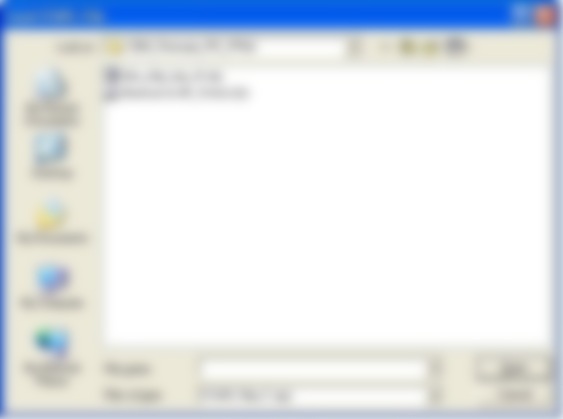
- Click the Browse... button and navigate to the location where the STAPL file (filename.stp) is stored (Figure 4).
Figure 4 Load STAPL File Window
- Select the filename.stp file.
- Click the Open button.
- Confirm that there are no error messages in the Status Messages panel at the bottom of the FlashPro window. If there are no error messages, the filename.stp file is properly loaded.
Figure 5 Status Messages Panel in FlashPro Window
- Click the PROGRAM button in the FlashPro window to start programmimg.
- Check for any of these error messages in the Status Messages panel on the FlashPro window:
- Error: programmer '32367': External voltage 1010 mV is detected on Vddp.
- Error: programmer '32367': Scan Chain FAILED.
- Error: Failed to run programming.
NOTE: If any of these error messages appear, the scan chain failed. Connect a 100Ω resistor between 3.3V and ground on the controller area network (CAN) bus master (CBM) printed circuit board (PCB) and repeat Steps 11 through 17. After the scan chain passes, remove the resistor.
- Wait approximately 5 minutes for the programming, programmed bits verification, and non-programmed bits verification to finish.
- Confirm that the message RUN PASSED appears in green letters in the Programmer Status field in the FlashPro window for each cycle.
- Confirm that the lights on the FlashPro programmer stopped blinking.
- Confirm that the message Executing action PROGRAM PASSED appears in the Status Messages panel at the bottom of the FlashPro window.
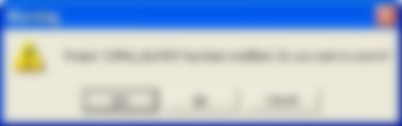
- Close the FlashPro window. If a Warning dialog window opens, click the Yes button to save the project (Figure 6).
Figure 6 Warning Dialog Window
- Turn off the FlashPro programmer.
- Disconnect the FlashPro programmer harness from the CBM PCB.
Work sample ©2016 SETCorrect LLC. All Rights Reserved.